
Sommaire
1. Régler le bras articulé de l’écran en fonction de ses besoins
2. Le bras support écran pour lutter contre les TMS et la fatigue visuelle
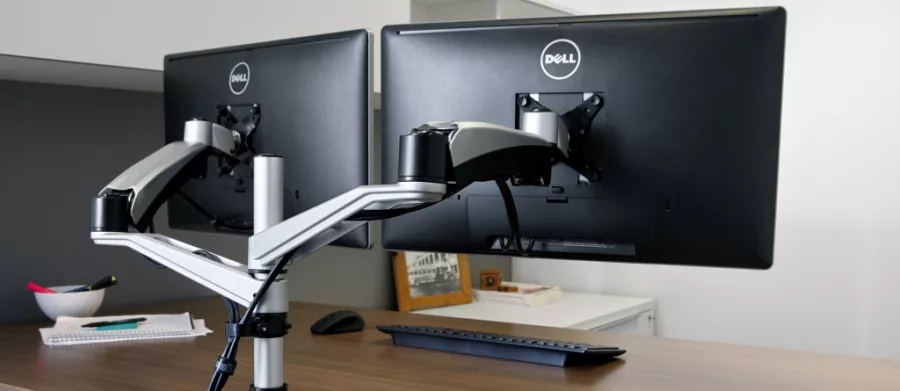
Pour agencer son bureau de façon ergonomique, il faut prendre en compte – entre autres – la hauteur et distance de son écran d’ordinateur. En effet, mal réglé, un écran peut entrainer une mauvaise posture et être la source d’un certain nombre de problématiques telles que la fatigue visuelle ou l’apparition de TMS au niveau des cervicales, épaules et lombaires. Il faut donc trouver une solution pour pallier ces problèmes. Ceux-ci peuvent être rapidement évités en installant son écran à un bras articulé, appelé aussi bras support d’écran. Cet outil simple d’installation convient à la plupart des bureaux et plans de travail, et offre un confort de travail non négligeable à l’utilisateur. Il existe cependant plusieurs types de bras articulés, et au premier abord, le choix de cet accessoire ergonomique peut paraitre compliqué. Nous revenons sur les points importants et déterminant afin de comprendre quelle est la meilleure solution ergonomique pour son écran de PC.
Le choix du modèle d’un bras articulé se fera en fonction de votre utilisation au quotidien, du type de tâches effectuées, mais également en fonction de l’agencement de votre poste de travail. Deux types de bras pour écran existent, à savoir les bras à réglage mécanique et les bras à vérin à gaz. Leur utilité est la même, mais leur utilisation diffère légèrement.
Le choix du modèle d’un bras articulé se fera en fonction de votre utilisation au quotidien, du type de tâches effectuées, mais également en fonction de l’agencement de votre poste de travail.
En effet, un bras d’écran articulé à réglage mécanique est installé sur un poste à opérateur unique et dont celui-ci n’a pas besoin de modifier la hauteur de son écran après configuration. Fixé au bras articulé, son écran PC est ainsi réglé en fonction de ses problématiques et de sa morphologie. La hauteur est ajustée et maintenue grâce à des clips de serrage jusqu’à une nouvelle configuration du poste.
Un bras d’écran articulé à vérin à gaz est, quant à lui, mis en place sur un poste à opérateur multiple, comme sur une banque d’accueil ou encore dans un open space où les bureaux sont partagés. L’écran peut être ainsi manipulé très facilement par l’utilisateur, qui peut modifier s’il le souhaite la hauteur de son écran simplement en montant ou descendant celui-ci.
Les deux types de bras articulés pour ordinateurs peuvent être accompagnés de supports additionnels pour un téléphone ou un ordinateur portable par exemple.
Régler le bras articulé de l’écran en fonction de ses besoins
Une fois le type de bras articulé choisi, il est important de connaître et appliquer les recommandations de réglages* de celui-ci. En effet, comme pour un siège ergonomique, un bras d’écran se configure de façon personnalisée afin de réduire le risque de fatigue visuelle, TMS, douleurs ou gènes lors de son utilisation.
Les principaux réglages à connaître correspondent à :
- La distance œil-écran, soit l’espace qui vous sépare avec l’écran. Selon les recommandations de l’INRS, il est important de régler son écran à environ 60 cm de soi, ce qui correspond à peu près à la longueur d’un bras tendu.
- La hauteur de l’écran : pour définir la bonne hauteur de son écran, il est recommandé de régler celui-ci de sorte à ce que le haut de l’écran soit sous la hauteur des yeux. Dans le cas de port de lunettes progressives, l’écran doit être placé plus bas.
- L’inclinaison de l’écran : afin d’éviter les éventuels reflets, source de fatigue visuelle, il est conseillé d’incliner son écran d’environ 20°.

Ces réglages peuvent être effectués sur un bras pour écran, mais également sur tout écran ne disposant pas de support.
Le bras support écran pour lutter contre les TMS et la fatigue visuelle
Comme expliqué précédemment, le rôle d’un bras articulé pour écran est d’apporter un confort pour les yeux… et pour le corps. En effet, en réglant son écran selon les recommandations ergonomiques ci-dessus, les longues heures de travail passées devant son ordinateur seront moins lourdes de conséquences que si l’on garde la configuration « classique ». Les douleurs et gènes qui surviennent à la fin d’une journée de travail sont principalement encouragées par un poste mal réglé, et si elles sont déjà difficiles à supporter au bout de quelques heures, elles peuvent aussi avoir des répercussions plus importantes sur le moyen et long terme.
Les principales zones du corps qui souffrent de ces maux sont généralement les cervicales et les lombaires, qui sont sollicités par la posture inappropriée que l’on adopte devant un poste de travail mal réglé. La colonne vertébrale et la nuque se courbent et supportent une charge musculaire statique pendant plusieurs heures, ce qui provoque très vite inconforts et douleurs.
Enfin, un mauvais réglage de l’écran peut également être à l’origine des symptômes classiques de la fatigue visuelle tels que les maux de tête, la fatigue mentale, les troubles mineurs de la vision, éblouissements, etc. En plus des réglages ergonomiques à effectuer sur son écran, il est également important de configurer les paramètres de son écran tels que la luminosité et le contraste, afin de réduire les risques de fatigue visuelle qui peut nuire à la concentration et à la productivité.
Un mauvais réglage de l’écran peut également être à l’origine des symptômes classiques de la fatigue visuelle tels que les maux de tête, la fatigue mentale, les troubles mineurs de la vision, éblouissements, etc.
Pour aller plus loin
Retrouvez nos fiches conseils « Quels réglages ergonomiques pour votre écran » et « 3 conseils pour limiter la fatigue visuelle au travail », ainsi que notre infographie « Fatigue Visuelle : prévenir son apparition au travail ».
*Source : INRS
Crédits :
Photo : ©Varidesk
Illustrations : ©Azergo 2017