
Sommaire
1. Pourquoi ai-je besoin de régler mon écran ?
2. Régler mon écran en 5 étapes :
3. De quels équipements ai-je besoin ?
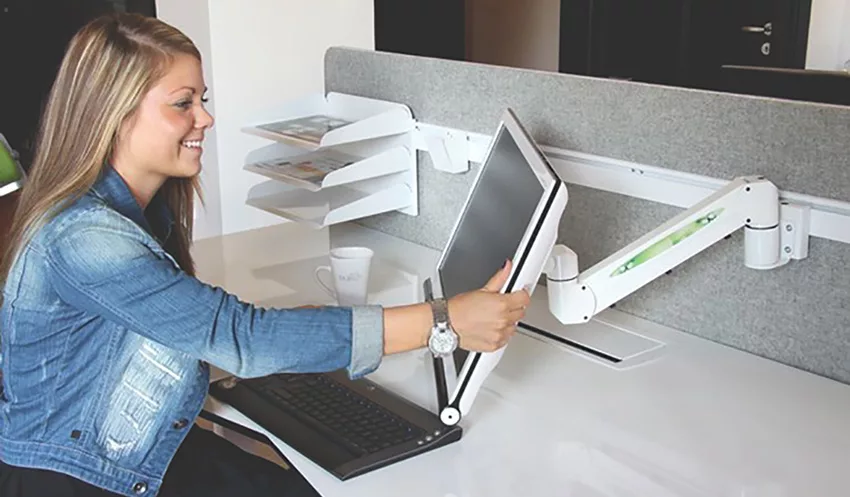
La majorité des employés d’une entreprise effectue des tâches quotidiennes sur ordinateur, la plupart néglige souvent les réglages de leur écran. En France, les Troubles Musculo-Squelettiques (TMS) représentent près de 85 % des maladies professionnelles, et 5 % d’entre elles sont liées au travail sur écran. Voici en quelques points importants nos conseils pour bien régler votre écran et ainsi améliorer votre posture lors de vos tâches informatiques.
Pourquoi ai-je besoin de régler mon écran ?
Un écran mal réglé peut s’avérer être l’une des causes principales des douleurs cervicales et lombaires. Outre la fatigue visuelle et le stress qu’elle peut causer, cette négligence devient surtout le facteur des douleurs musculaires : nuque, épaules, région lombaire, … ces zones sur-sollicitées et malmenées peuvent vite faire de votre travail quotidien en enfer. Afin de prévenir les risques ou réduire les douleurs existantes, il est essentiel de revoir l’organisation du poste de travail dans son intégralité.
L’écran n’est pas le seul responsable des douleurs engendrées lors du travail sur poste informatique. La mauvaise utilisation des autres accessoires, tels que le clavier, la souris, ou la gestion des documents peut également être source de stress et favoriser l’arrivée des TMS.
Régler mon écran en 5 étapes :
L’amélioration de votre posture devant votre écran peut se faire grâce à quelques réglages très simples :
1/ POSITIONNEMENT
L’écran doit être avant toute chose placé face à vous, et ne doit pas être positionné en biais, afin de limiter les torsions des cervicales et lombaires. Inclinez également légèrement l’écran vers l’arrière (en fonction de votre correction visuelle, par exemple légèrement plus incliné dans le cas de verres progressifs).
2/ HAUTEUR
Le réglage de la hauteur est un élément primordial pour la prévention des TMS et fatigue visuelle liés au travail sur poste informatique. Privilégiez l’installation d’un bras support écran qui permettra de façon simple et rapide de régler votre écran à la fois en hauteur, mais également en profondeur.
Afin de connaitre la hauteur optimale de votre écran, installez-vous dans votre fauteuil, le dos contre le dossier et la tête droite, et regardez l’écran droit devant vous. Le haut de l’écran doit ainsi se situer au niveau des yeux. Ainsi, le contenu de l’information consultée est situé dans un angle descendant d’environ 15%, ce qui représente votre zone de confort visuel.
3/ DISTANCE
La distance à laquelle vous fixer l’écran est également un élément à pendre en compte dans la prévention des TMS. Passer toute une journée devant un écran trop près ou trop éloigné contraint vos yeux à faire de nombreux efforts, et augmente les signes de fatigue visuelle : maux de tête, sécheresse oculaire, yeux irrités, etc. Pensez donc à régler votre écran à une distance d’environ 50-60 cm de vos yeux, ce qui correspond approximativement à la distance de vos bras tendus devant vous.
4/ ENVIRONNEMENT
L’environnement de travail est un facteur supplémentaire qui peut être lié à l’apparition des TMS chez les salariés. En effet, un bureau trop sombre ou avec un éclairage trop intense accentue les symptômes de fatigue visuelle. Afin de travailler dans un contexte sain, veillez à avoir un bon éclairage de la pièce et à limiter tout reflet sur l’écran. Si votre bureau est situé à proximité d’une fenêtre par exemple, ne placez pas votre écran à contre-jour, ni face à la fenêtre.
5/ CONTRASTE
Enfin, ne négligez pas les réglages du contraste et de la luminosité de l’écran de l’écran. Adaptez ces préférences à l’éclairage de votre bureau et n’hésitez pas à les ajuster en cas de changement de lumière ambiante, qu’elle soit naturelle ou artificielle.
De quels équipements ai-je besoin ?
Le bras support écran vient se fixer à votre bureau et permet un réglage de la hauteur et parfois de la profondeur de votre écran. D’installation simple et rapide, ce système s’adapte aux double-écrans et peut être complété par d’autres accessoires comme la plateforme de téléphone ou plateforme de PC portable.
Si vous travaillez habituellement directement depuis votre PC portable, d’autres solutions peuvent être mises en place telles que le support de PC portable qui permet de rehausser l’ordinateur pour vous offrir une hauteur de lecture confortable. L’utilisation d’un clavier séparé est dans ce cas fortement recommandée.
En supplément du bras support écran, votre poste travail pourra également être équipé d’accessoires ergonomiques complémentaires, destinés à améliorer votre confort et limiter les douleurs au niveau des zones sollicitées. Le repose-documents permettra ainsi de réduire les tensions des cervicales lors de la prise de notes ou durant la consultations de documents. L’utilisation d’une souris verticale ou d’un pointeur central vous offrira également un confort de travail tout en évitant ou soulageant les douleurs du poignet, épaule et cervicales.