
Sommaire
1. Organisez votre espace de travail
2. Apprenez à bien vous asseoir
3. Positionnez vos documents
4. Réglez votre écran
5. Ordinateur portable : Utilisez une souris et un clavier dissociés
6. Limiter la fatigue visuelle
7. Alternez les postures
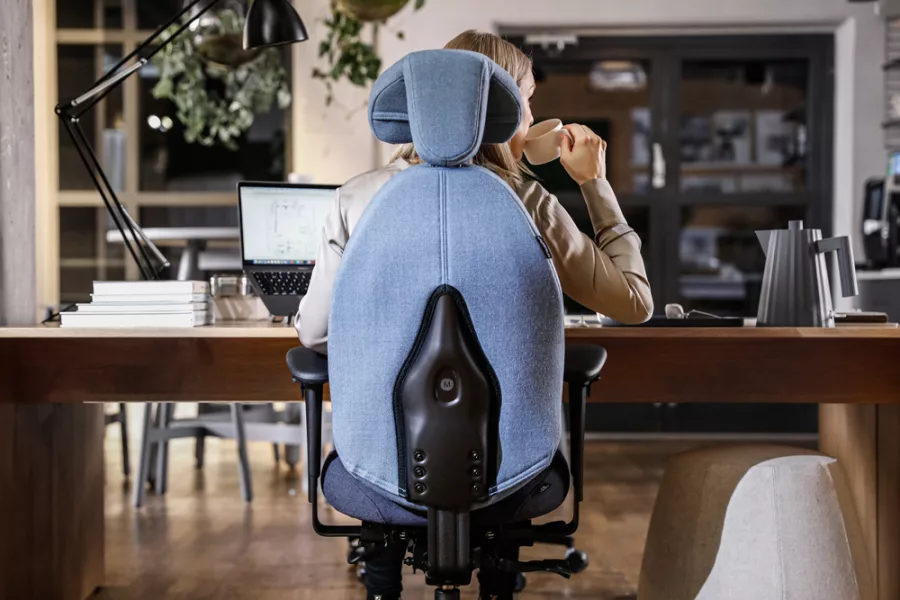
Une récente étude a mis en évidence les nombreux avantages du télétravail : augmentation de la productivité, diminution de l’absentéisme, gains économiques sur le transport, gain de temps au profit de la vie privée, réduction du stress et de la fatigue physique… (1). Dans un sondage publié en 2019, 90% des télétravailleurs évoquent même une plus grande autonomie et responsabilisation, ainsi qu’un meilleur engagement (83%) (2). Afin de bénéficier pleinement des avantages du télétravail, il ne faut toutefois pas faire l’impasse sur le confort et l’ergonomie de votre poste informatique !
En travaillant à la maison, il se peut que vous ressentiez rapidement des douleurs aux cervicales, aux épaules, au dos ou aux jambes par exemple, en raison de mauvaises postures ou d\’un matériel inadapté. Dans ce contexte, comment limiter les pertes de confort par rapport à votre poste habituel ? Comment bien s’installer avec le matériel dont on dispose à la maison ? Quelle bonne posture adopter au quotidien ?
Le premier conseil que l’on peut donner à un télétravailleur, c’est de bouger ! Le télétravail offre moins de possibilités de mouvement que le travail en entreprise, c’est pourquoi il faut être encore plus attentif à son corps et à ses besoins. Retrouvez nos astuces pour faire des pauses efficaces dans la fiche conseils “Télétravail : 10 conseils pour bien s’organiser et être productif”.
Les recommandations suivantes vous permettront de travailler assis confortablement et de limiter les risques de Troubles Musculosquelettiques (TMS), en adoptant une posture la plus neutre possible. Toutefois, n’oubliez pas qu’il n’existe pas de posture statique idéale, car le corps humain a besoin de mouvement. Pensez à varier les postures de travail en passant régulièrement de assis à debout, et inversement.
1. Organisez votre espace de travail
Choisissez un endroit dédié au télétravail : dans l’idéal, c’est une pièce calme avec un bureau, ou un bout de table. Gardez votre téléphone portable à proximité de vous, dans votre zone de confort, afin de ne pas avoir à trop tendre le bras ou à vous contorsionner pour l’attraper.
Utilisez aussi souvent que possible le kit mains libres, qui permet :
- De prendre des notes manuscrites ou sur ordinateur pendant l’appel
- De se lever et de marcher pour les appels qui ne nécessitent pas de prise de notes
- Dans les deux cas, d’éviter une sur-sollicitation des cervicales si vous avez l’habitude de coincer le téléphone entre l’oreille et l’épaule.
Notre solution ergonomique :
Le casque anti-bruit sélectif Tilde Pro pour réduire le bruit ambiant, tout en gardant le contact avec l’extérieur et passer des appels parfaitement intelligibles.

2. Apprenez à bien vous asseoir
- Asseyez-vous au fond de votre siège, pour éviter d\’être tentés de vous pencher en avant.
- Pour préserver votre dos, évitez de croiser les jambes.
- Placez un coussin sur l’assise si le bureau est trop haut et que vous ne pouvez pas ajuster la hauteur de votre siège. Cela vous permettra d’être à la bonne hauteur et de pouvoir poser les bras sur le plan de travail.
- Relâchez les épaules au maximum pour les détendre, ne pas solliciter les cervicales et éviter toute gêne et douleur dans cette zone.
- Veillez à poser les pieds bien à plat sur le sol, tout en gardant un angle de 90° à l’arrière du genou.
- Surélevez-les avec un livre épais par exemple s\’ils ne touchent pas par terre
Notre solution ergonomique :
Un repose-pieds ergonomique pour garder l’ouverture des genoux à l’angle de 90 degrés.
3. Positionnez vos documents
Si vous consultez des documents, placez-les entre le clavier et l’écran, si possible sur un plan incliné : un classeur par exemple. Vous limiterez les mouvements répétés 
de votre tête entre les documents et l’écran et réduirez ainsi les douleurs aux cervicales, mais aussi la fatigue visuelle.
Notre solution ergonomique :
Un support de documents pour positionner ses documents directement dans sa zone de vision. 
Pour en savoir plus : Notre fiche conseils “Support de documents : quels bénéfices sur ma posture ?”
4. Réglez votre écran


- L’écran d’ordinateur fixe ou de PC portable doit se situer en face de vous, pas de biais, afin de limiter les torsions des cervicales et lombaires.
- La distance entre vous et votre écran doit être équivalente à la longueur de votre bras en position assise, soit environ 50-70 cm. Si l\’écran est trop près ou trop éloigné, vous risquez de ressentir de la fatigue visuelle : maux de tête, sécheresse oculaire, etc.
- Lorsque vous êtes assis correctement à votre poste, le dos collé à votre dossier, votre regard doit atteindre le haut de l’écran : réhaussez-le avec un livre épais ou une ramette de papier si nécessaire. Dans cette position, le contenu de l’information consultée est situé dans un angle descendant d’environ 15% : c’est votre zone de confort visuel. Votre posture restera ainsi neutre, sans douleur au niveau du cou.
- Paramètrez votre écran : réglez le contrat, la luminosité, la définition et la taille du texte à l\’écran. Cela vous permettra d\’améliorer votre confort visuel et de ce fait vos cervicales car vous n\’aurez pas besoin de vous pencher vers l\’avant pour déchiffrer les informations à l\’écran.
- Si vous portez des lunettes à verres progressifs : placez l\’écran un peu plus bas et légèrement incliné vers l\’arrière.
Notre solution ergonomique :
Un bras support d’écran ou un support PC portable pour placer l’écran à la bonne hauteur. Avec un PC portable, il faut se munir d’un clavier déporté et d’une souris.
Pour en savoir plus : Nos fiches conseils “Quels réglages ergonomiques pour votre écran ?” et “Choisir un bras articulé pour votre écran de PC : Les points clés”
5. Ordinateur portable : Utilisez une souris et un clavier dissociés
Si vous travaillez sur ordinateur portable ou tablette, votre écran doit se situer au niveau des yeux pour limiter les douleurs aux cervicales. En redressant votre écran, vous ne pourrez plus utiliser votre clavier ni votre trackpad. Utilisez donc une souris et un clavier dissociés. Cela permettra de rapprocher vos bras du corps et donc de relâcher vos cervicales et épaules.
Si vous utilisez une souris classique et que vous ressentez des douleurs au niveau de l’épaule ou du bras, essayez de rapprocher la souris de vous, devant le clavier si nécessaire. Vous limiterez ainsi l’effort d’extension du bras vers l’extérieur.
Nos solutions ergonomiques :

Un pointeur central pour avoir une zone de travail rapprochée du corps et éliminer les tensions musculaires sur les épaules et cervicales.

En cas de douleurs au niveau du poignet et du coude (syndrome du canal carpien), une souris verticale permet d’éviter la compression et l’hyper-extension du poignet.
Un clavier compact pour recentrer les bras près du corps ou un clavier adapté au pointeur central.

Pour en savoir plus : Notre fiche conseils “Souris ergonomique et pointeur central : lequel choisir ?”
6. Limiter la fatigue visuelle
La fatigue visuelle est un risque fréquent lorsque l’on travaille devant un écran. Elle cause des maux de tête, des éblouissements, une vision floue… Pour l’éviter, rien de tel que les micro-pauses ! Détachez le regard de votre écran et regardez au loin pendant 20 secondes. Répétez ces pauses toutes les 20 minutes environ, afin de bien reposer vos yeux. Une pièce disposant d\’une bonne luminosité favorisera également la fatigue visuelle.
Pour en savoir plus : Notre fiche conseils “3 conseils pour limiter la fatigue visuelle au travail” et notre infographie “Fatigue visuelle : prévenir son apparition au travail”
7. Alternez les postures
-
- La posture assise de façon continue peut provoquer de nombreuses douleurs et augmenter les risques de Troubles Musculosquelettiques (TMS).
- Pensez à faire des pauses et à vous lever toutes les heures, notamment lorsque vous passez des appels sans prise de notes.
- Si possible, essayez d’alterner les postures en travaillant debout pendant des sessions de 30 minutes en vous installant par exemple sur un plan de travail élevé, comme un bar de cuisine. Attention cependant à avoir les bras à environ 90° et de ne pas avoir les épaules trop hautes, ce qui peut arriver si le plan est trop haut.
Pour en savoir plus : Notre fiche conseils “Plateformes de travail assis-debout : le nouvel outil de bureau pour l’alternance de postures.“
Notre solution ergonomique :
La plateforme de travail assis-debout Oploft, pour alterner les postures assise et debout en toute simplicité.
Vous cherchez à améliorer votre concentration et votre productivité à la maison ? Lisez également notre guide : \ »Télétravail : 10 conseils pour s\’organiser à la maison\ ».
Nous contacter
Notre équipe de conseillers en aménagement est à votre disposition pour vous donner tous les conseils nécessaires pour bien vivre le télétravail et en faire un atout pour votre vie professionnelle et personnelle. Contactez-nous !
(1) Source : PLANCHARD, J.H et VELAGIC, Z. Évaluation de l’impact psychologique du télétravail. Centre hospitalier universitaire (CGU) Nice, 2020. Résumé d’étude sur demande à l’adresse communication@azergo.fr
(2 ) Source : Le Comptoir de la nouvelle entreprise de Malakoff Humanis, 2019
Illustrations : Azergo 2020